The size limitation on GEDCOM files which could be imported into Geni has been an issue and it looks as if their developers have addressed this.
The old limit of 15,000 records has now been raised to 50,000 records and the press release/email blast from Geni states, "We hope that this will attract many more genealogists to Geni to share their research with their family and collaborate with others."
Curiously this news hasn't yet been posted to the Geni blog or in the Knowledgebase/Help section of Geni itself.
As I've said before in previous posts, to me Geni is the web application that best reproduces the Facebook experience for genealogists and family historians. If you have a chance today, check out Geni.

Showing posts with label Geni. Show all posts
Showing posts with label Geni. Show all posts
Thursday, October 23, 2008


Thursday, September 25, 2008
Geni Person Pages
A few weeks ago, I posted about the fact that Geni was in fact more like Facebook than Footnote. This came about when Footnote debuted its new People Pages feature.
I've finally had some time to take some Geni features for a test drive and I have to say that as a product it is much more in the Genealogy 2.0 vein that I am looking for. Footnote's advantage is that pages are already established if a person has a record in the Social Security Death Index. However, Footnote - as of yet - does not allow you to import a GEDCOM file which means details must be added manually.
Once you've uploaded a GEDCOM file to Geni however, you can start customizing the Person Pages for your ancestors and really expand the functionality of linked events and people - to me, a true indicator of Web 2.0 / Genealogy 2.0 power.
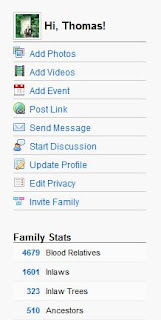
1. At the Home page, locate the person whose page is in need of updating. I usually click on Ancestors in the lower left corner.
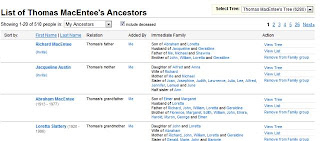
2. The Ancestors page appears. Located the person and click on the name.
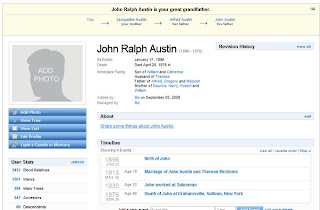
3. The Geni Person Page appears.
4. Click Add Photo. You can choose the Simple Photo Uploader or the Advanced Photo Uploader. For now, click the Simple Photo Uploader then click Choose File.
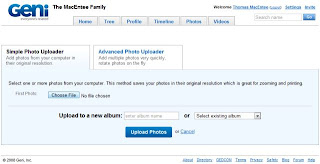
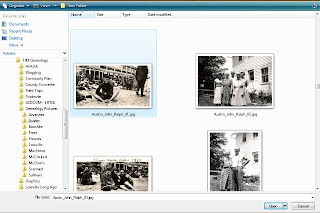
6. The file name will appear in the First Photo field. Continue adding photos or click Upload Photos. (Note: if you want to upload photos to a specific album, enter an album name in the Upload to a new album field or select from an existing album using the drop-down list)


9. The photo will appear in the page for your ancestor.

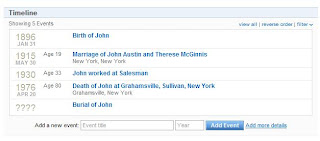
12. Once you have added yourself or others as attendees, you can display that fact in your own timeline. On your page, in the Timeline section, click the drop-down button for the Filter function and select Attendee.

13. The fact that you attended this event is now displayed in your timeline.

I will continue my work with Geni and probably send them my suggestions. I suggest you check out Geni if you haven't done so already and either post about your experience and/or send your feedback to Geni. The people behind Geni seem genuinely intent on taking feedback to heart and making improvements to its product.
I've finally had some time to take some Geni features for a test drive and I have to say that as a product it is much more in the Genealogy 2.0 vein that I am looking for. Footnote's advantage is that pages are already established if a person has a record in the Social Security Death Index. However, Footnote - as of yet - does not allow you to import a GEDCOM file which means details must be added manually.
Once you've uploaded a GEDCOM file to Geni however, you can start customizing the Person Pages for your ancestors and really expand the functionality of linked events and people - to me, a true indicator of Web 2.0 / Genealogy 2.0 power.
1. At the Home page, locate the person whose page is in need of updating. I usually click on Ancestors in the lower left corner.

2. The Ancestors page appears. Located the person and click on the name.

3. The Geni Person Page appears.

4. Click Add Photo. You can choose the Simple Photo Uploader or the Advanced Photo Uploader. For now, click the Simple Photo Uploader then click Choose File.

5. Locate the folder containing the photo you want to upload. Highlight the photo and then click Open.

6. The file name will appear in the First Photo field. Continue adding photos or click Upload Photos. (Note: if you want to upload photos to a specific album, enter an album name in the Upload to a new album field or select from an existing album using the drop-down list)

7. If you selected Advanced Photo Uploader, you do not need to locate individual files by pressing Choose File for each photo. You can navigate to the folder with the photo to be uploaded, and then place a checkmark next to the photo before clicking Upload Photo.
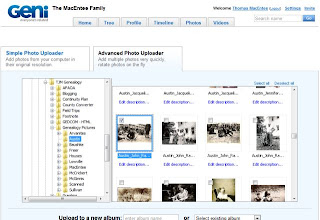

Note: the Advanced Photo Uploader requires the latest version of the Java application and you may be prompted to download this before having full access to the feature. In addition, I find that the Advanced Photo Uploader is much slower than using the Simple Photo Uploader. This may be due to the number of photos in my photo folder.
8. Next, you will be prompted tag the photo you just added. You can enter the name of the person in the photo and you can add a caption. Click Save Your Changes when finished.

9. The photo will appear in the page for your ancestor.

10. Other details to be added are events. In the Timeline section, locate events that are incomplete. In the example below click ???? Burial of John.

11. The details page for the event appears. Complete as many details as possible. One nice feature is the ability to add yourself as an attendee to an event. Click I was there in the Attendee section.
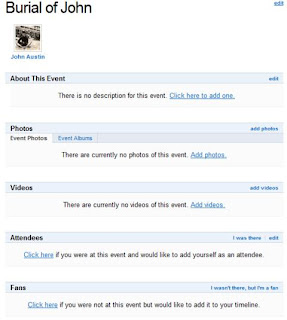

Note: There is also a Fan section where you can basically say "I wasn't there, but I'm a fan." I think Geni needs to rethink this feature - it looks kind of tacky when used for the Death and Burial events, as much as it may be true for certain people in your family. What I am sure Geni is trying to do is allow a tracking mechanism to be used so the event can appear in a person's Timeline. The wording just isn't there yet.
12. Once you have added yourself or others as attendees, you can display that fact in your own timeline. On your page, in the Timeline section, click the drop-down button for the Filter function and select Attendee.

13. The fact that you attended this event is now displayed in your timeline.

I will continue my work with Geni and probably send them my suggestions. I suggest you check out Geni if you haven't done so already and either post about your experience and/or send your feedback to Geni. The people behind Geni seem genuinely intent on taking feedback to heart and making improvements to its product.
Monday, September 15, 2008
Geni - Facebook for Ancestors?

With all the news about Footnote's Footnote Pages™ last week, many of us went to find the ready-to-customize pages and try out the new feature. I was one of them and gave a preliminary report - I will have a more in-depth posting later this week.
One reader commented that Footnote Pages™ seemed like Facebook® for Ancestors. I thought a bit about that and came to the conclusion that Geni, which bills itself as "a collaborative environment where multiple family members can work together to build, share, and preserve a rich family history," is more akin to Facebook® than Footnote's new feature. Here's why:
- just one look at Geni and it is obvious that the interface mimics Facebook® and other social networking applications with all the bells and whistles. "The Wall" is known as "Family News" on Geni. You can send emails, post messages, post videos and photos, etc.

- the same details you enter when setting up an account (profile picture, interests, schools, etc.) can be entered for your ancestors
- Geni shows the relationships between your ancestor and others in your family tree - sort of like the Friends feature in Facebook®

And with all this Geni make it relatively easy to import a GEDCOM file with all your family tree info so that all that is necessary is further customization of pages.
If you haven't had a chance to check out Geni yet, take time to wander around and upload a GEDCOM file. I am hoping to spend more time on my Geni trees this week and then see if I can convince some of my living relatives to set up their own accounts and contribute information.
Subscribe to:
Posts (Atom)